




How Apps Change Their Logo Without an App Update: The Magic of Dynamic App Icons & Remote Config
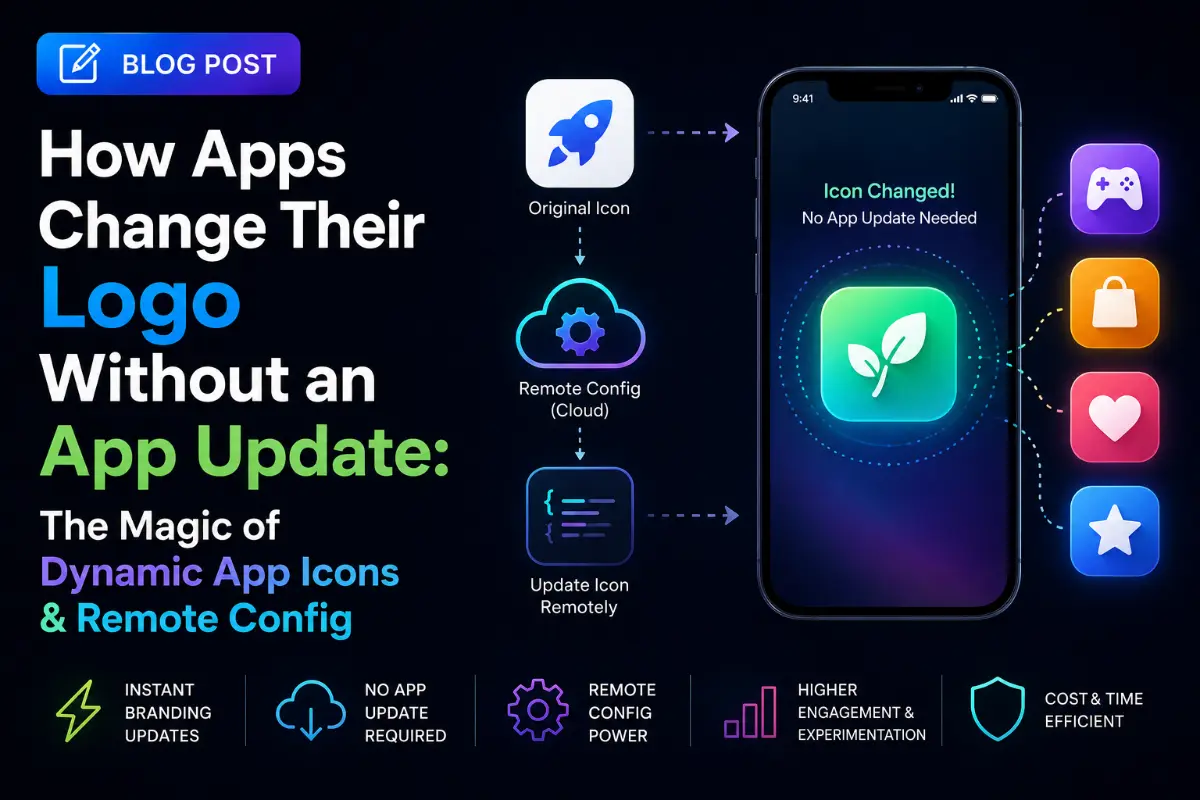
During major festivals like Christmas, Halloween, or Pride Month, you might notice that some of your favorite apps—like Instagram, Target, or Uber—suddenly change their app icons on your home screen without you ever downloading an update. How is this possible? The secret isn’t a magic, silent app store release. It is a powerful combination of Dynamic App Icons and Remote Configuration. In this blog, we'll dive deep into how this mechanism works on both iOS and Android, and how you can implement this seamless feature in your own mobile applications.
Guide Highlights
- 🚀 The Core Architecture: Icons + Config
- 🍎 iOS: Alternate App Icons API
- 🤖 Android: Activity Alias Technique
- ☁️ Remote Orchestration & Best Practices
🚀 The Core Architecture: Pre-bundled Assets + Backend Brains
Before we look at the code, it is critical to clear up a common misconception: you cannot download a brand-new icon image from a remote server and set it as the app icon in real time.
Both iOS and Android enforce strict security boundaries. The operating system needs to know about every possible app icon at build time. Therefore, the architecture relies on two key parts:
📦 1. Pre-Bundled Icon Assets
You must compile all seasonal or alternate icons directly inside your app binary before releasing it to the App Store or Google Play Store.
🧠 2. Remote Config (The Brain)
A backend service (like Firebase Remote Config or a custom REST API) sends a flag to the app (e.g., "active_icon": "halloween"). The app reads this flag and switches to the pre-bundled icon programmatically.
🍎 iOS: Alternate App Icons API
Apple provides a first-class API for this feature starting from iOS 10.3. Here's how you set it up:
Step 1: Configure the Info.plist
You must register your alternate icons in your project's Info.plist file under the CFBundleIcons key. Here is what that XML structure looks like:
<key>CFBundleIcons</key>
<dict>
    <key>CFBundlePrimaryIcon</key>
    <dict>
        <key>CFBundleIconFiles</key>
        <array>
            <string>AppIcon</string>
        </array>
    </dict>
    <key>CFBundleAlternateIcons</key>
    <dict>
        <key>ChristmasIcon</key>
        <dict>
            <key>CFBundleIconFiles</key>
            <array>
                <string>icon_christmas</string>
            </array>
            <key>UIPrerenderedIcon</key>
            <false/>
        </dict>
    </dict>
</dict>
Step 2: Programmatically Change the Icon in Swift
Use the setAlternateIconName(_:completionHandler:) API to execute the switch.
import UIKit

func changeAppIcon(to iconName: String?) {
    // Check if the device supports alternate icons
    guard UIApplication.shared.supportsAlternateIcons else {
        print("Alternate icons are not supported on this device.")
        return
    }

    // Pass nil to revert back to the primary app icon
    UIApplication.shared.setAlternateIconName(iconName) { error in
        if let error = error {
            print("Error changing app icon: \(error.localizedDescription)")
        } else {
            print("Successfully changed app icon to: \(iconName ?? "Primary")")
        }
    }
}
Note: Changing the icon on iOS triggers a system pop-up notifying the user: "You have changed the icon for [AppName]."
🤖 Android: The Activity-Alias Technique
Unlike iOS, Android does not have a direct API to change the app icon. Instead, Android developers use the <activity-alias> tag in the AndroidManifest.xml.
Step 1: Define Aliases in AndroidManifest.xml
Create an alias pointing to your main launcher activity. By default, the main activity is disabled (or enabled), and the aliases are switched on or off.
<!-- Primary Activity (Enabled by Default) -->
<activity android:name=".MainActivity"
          android:enabled="true"
          android:exported="true">
    <intent-filter>
        <action android:name="android.intent.action.MAIN" />
        <category android:name="android.intent.category.LAUNCHER" />
    </intent-filter>
</activity>

<!-- Alternate Christmas Alias (Disabled by Default) -->
<activity-alias
    android:name=".ChristmasAlias"
    android:targetActivity=".MainActivity"
    android:icon="@mipmap/icon_christmas"
    android:roundIcon="@mipmap/icon_christmas_round"
    android:label="@string/app_name"
    android:enabled="false"
    android:exported="true">
    <intent-filter>
        <action android:name="android.intent.action.MAIN" />
        <category android:name="android.intent.category.LAUNCHER" />
    </intent-filter>
</activity-alias>
Step 2: Enable/Disable Aliases via Kotlin/Java
Toggle the state of your activity aliases programmatically using PackageManager:
fun enableChristmasIcon(context: Context) {
    val pm = context.packageManager

    // Enable the Christmas alias
    pm.setComponentEnabledSetting(
        ComponentName(context, "com.example.ChristmasAlias"),
        PackageManager.COMPONENT_ENABLED_STATE_ENABLED,
        PackageManager.DONT_KILL_APP
    )

    // Disable the default activity
    pm.setComponentEnabledSetting(
        ComponentName(context, "com.example.MainActivity"),
        PackageManager.COMPONENT_ENABLED_STATE_DISABLED,
        PackageManager.DONT_KILL_APP
    )
}
Warning: Disabling the main launcher activity can cause the Android OS to kill the app's current process and restart the launcher to refresh the icon.
☁️ Remote Orchestration & Best Practices
Once you have the dynamic icons configured inside the app, you connect it to a remote control panel. Here is the lifecycle of how it executes:
📡
1. Fetch
Fetch Remote Config payload on app launch.
💾
2. Cache & Compare
Compare cached icon name with backend value.
🕒
3. Idle Wait
Wait until the user places the app in the background.
⚡
4. Swap
Execute the icon swap silently when app goes inactive.
💡 Production Checklist & Tips
- Defer the swap: Never trigger the icon swap while the user is actively engaging with the app. Wait for the
applicationDidEnterBackgroundcallback in iOS, oronStop()in Android. - Handle Missing Aliases Safely: Wrap your logic in try-catch statements. If you fetch an icon name that is not compiled in that specific build, fallback to the default icon.
- Mind the OS Alert: Be aware that iOS will show a prompt to the user when the icon changes. Some apps choose to only prompt on user actions (e.g. settings page) to make it expected, while others trigger it silently via legacy API workarounds.
- A/B Testing: Use this feature to test engagement! For instance, you can offer custom app icons as a premium feature for paying subscribers to increase conversion rates.
Written by Lead Mobile Engineer
Senior Career Advisor & Recruitment Specialist at JobPortalConnect. With years of experience in HR matching, they review resumes, optimize career pathways, and interview recruiting partners directly.